School admissions
Move an application through assessment, offer and enrollment without losing its intake context.
Use Admissions (/admissions) to manage school applications. Configure admission fees and intakes before directing families to apply. Intake setup requires admissions.configure; application decisions require the relevant admissions permissions.
Prepare the intake
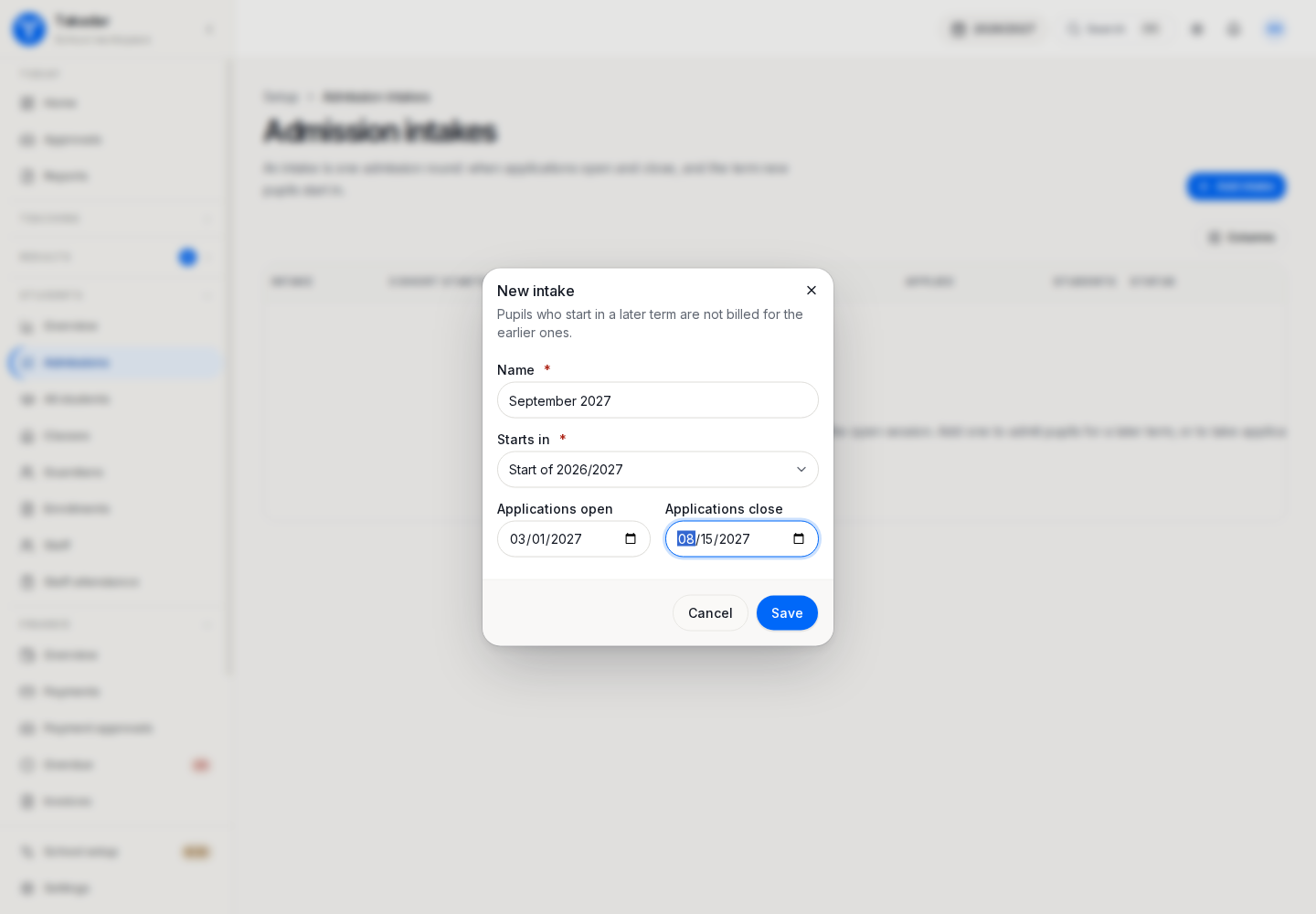
Set the session, joining term, application dates and applicable intake details in Setup → Admission intakes. Configure application charges in Settings → Admissions. Application fees are supported for K–12 schools as well as higher education.
When an application fee is configured, a public application begins as a draft and must satisfy the fee requirement before submission. Authorized staff can record an application fee collected at the counter. Do not confuse an application-fee record with the student’s later tuition invoice.
Review and assess applications
Review applicant details and supporting information. Where entrance assessment scores are available, use the admissions results import to load them against existing applications. Validate matching identifiers and every row before confirming. The upload updates applications rather than inventing an applicant for an unmatched score.
Use the application’s available status actions to record the admissions decision. Keep the decision and its recorded reason where requested; editing a score is not the same as issuing an offer.
Convert to a student
When the application is ready for enrollment, convert it into a student and the intended session placement. Check the session, class and joining term. If several sessions are open, the intake is especially useful for avoiding the wrong cohort.
The joining term matters: earlier term-specific fee plans skip a late entrant. The student’s identifier follows the numbering configuration and is not changed merely because the office later moves the student to another intake.
Verify the hand-off
Find the new student in the student register, inspect the placement and verify the family links. Check applicable fees separately. An offered place, a submitted application and an enrolled student are different stages; use the saved records to confirm the hand-off rather than relying only on an email or payment screenshot.
In the demonstration application
These captures use synthetic seeded records. Select an image for the full-size view.