Roles, permissions and scope
Understand why a colleague can view a record, make a decision or see only one unit.
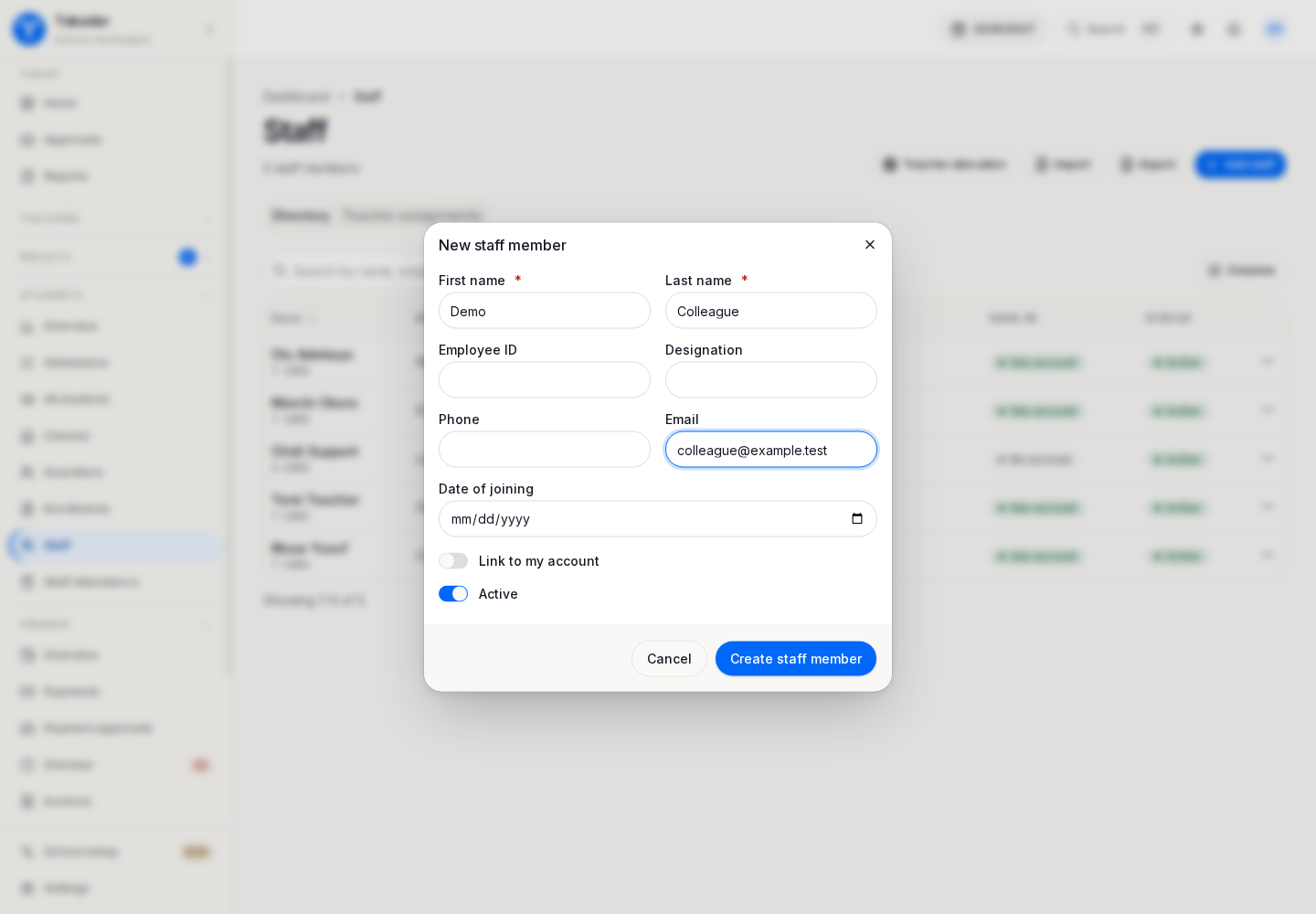
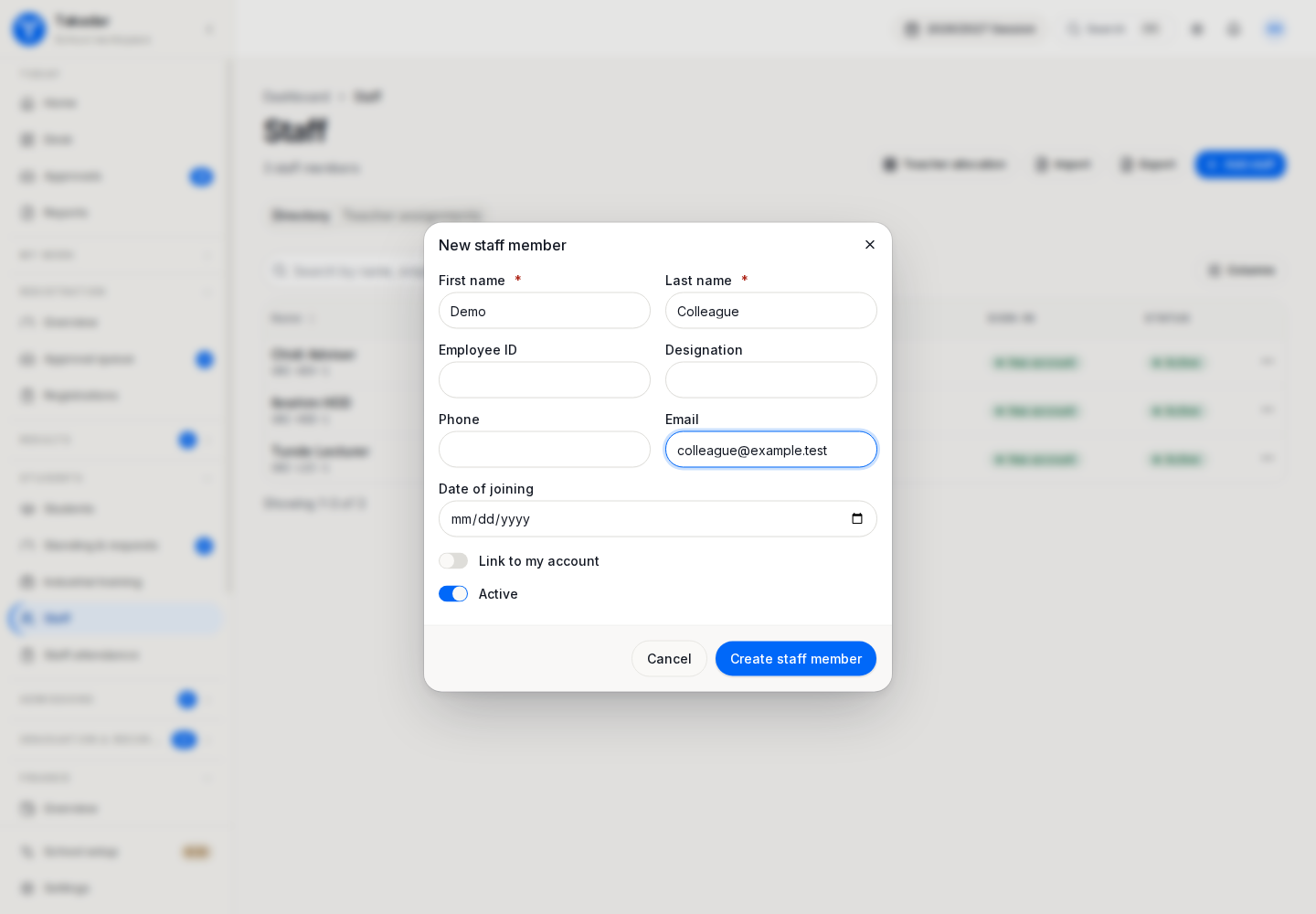
Access has three parts: the role assigned to a person, the permissions that role currently grants, and any scope limiting those permissions. Institution administrators can manage staff access from the staff record’s Access area when authorized to manage roles.
Separate setup from daily work
| Permission | Intended responsibility |
|---|---|
academic.configure | Sessions, classes, programmes and academic structure |
grading.configure | Assessment types, grade scales and grading schemes |
fees.configure | Fee catalogue and plan definition |
fees.write | Operational fee actions such as assignments and discounts |
results.import_history | Loading historical results and documents |
modules.configure | Administrator control of switchable modules |
A teacher who can enter marks does not thereby get permission to change the school’s grading policy. Likewise, a bursary user’s operational actions and configuration rights are distinct.
Understand scope
A higher education role can be limited to a faculty or department subtree. In a school, a head of department can work across that department’s subjects, while a section head can be limited to a phase such as junior secondary. Teaching work also follows actual allocations.
An unscoped unit role can be institution-wide. Review the scope when assigning the role, especially when a member of staff changes office.
Approval and clearance are specific powers
Department, faculty and Senate result decisions require their own stage permissions. Progression requests likewise require the permission for the current stage. Graduation clearance also checks which signing unit the person represents; access to a queue is not permission to sign every line.
Saved role bundles may have been customized. Use the person’s effective permissions and scope to investigate access, rather than assuming every “dean”, “teacher” or “bursar” has identical powers.
Student and guardian access is confined to the signed-in student or linked children. It does not grant access to the institution’s staff directories or general registry lists.
In the demonstration application
These captures use synthetic seeded records. Select an image for the full-size view.